Gestionarea modulelor cookie care sunt utilizate pentru publicitate, cum ar fi personalizarea anunțurilor, remarketing și analiza performanței anunțurilor.
2.4.2.2. Automatic site transfer between hosting accounts
Important points:
- The system only transfers data and does not make any changes to the files and databases of the site. Necessary changes will have to be made by yourself.
- Transfer conditions:
- Both hosting accounts must be accessible within a single account (either owned by or delegated).
- Both hosting accounts must be active.
- A destination hosting account must not have viruses.
- For virtual hosts and mailboxes:
- Only one database can be transferred at a time. You can transfer more databases in different ways:
- Submit a separate transfer request for each database (select only the database transfer from the components).
- Import each database in the destination hosting account directly from the source hosting account.
- The size of the site or database should not exceed 50 GB and 200,000 inodes. If the size is larger, you should either reduce it by transferring some of the data manually or use manual transfer.
- Not transferred:
- Dedicated IP. If your site needs a dedicated IP, after transferring to a new hosting account you will need to order a new dedicated IP and connect it to your site.
- Symbolic links (symlinks). If they are necessary for the site to work, after transferring they will have to be create them again.
- Backups. Backups created before the transferring will be available to the previous owner according to retention periods.
- After the transfering, it's mandatory:
- Change the database connection settings in the site's configuration file. If this is not done, the site will remain connected to the database in the source hosting account, which can lead to various problems in the future (for example, in case of loss of connection with the owner of the source hosting account it will be impossible to restore the database from an automatic backup).
- Correct absolute paths if they are used on the site.
The automatic transfer system allows:
- Copy the contents of the selected site's directory or any of its subdirectories from one hosting account to another.
- Copy the contents of the selected database from one hosting account to the database of another.
You can select the components to transfer in any combination — for example, you can copy the contents of the site directory or the contents of the database without transferring virtual hosts and mailboxes.
flowchart LR
subgraph example1 [☁️ Source hosting account]
subgraph hosts1[ ]
direction RL
site1@{ shape: rounded, label: "🌐 Virtual hosts
(site and its subdomains)" } mail1@{ shape: rounded, label: "📬 Mailboxes" } end files1@{ shape: rounded, label: "📑 Site files" } db1@{ shape: rounded, label: "🗄️ Database" } end subgraph example2 [☁️ Destination hosting account] subgraph hosts2[ ] direction RL site2@{ shape: rounded, label: "🌐 Virtual hosts
(site and its subdomains)" } mail2@{ shape: rounded, label: "📬 Mailboxes" } end files2@{ shape: rounded, label: "📑 Site files" } db2@{ shape: rounded, label: "🗄️ Database" } end hosts1-->|➡️ Transferring
of virtual hosts
and mailboxes|hosts2 files1-->|🗐 Copying
files|files2 db1-->|🗐 Copying
database|db2
(site and its subdomains)" } mail1@{ shape: rounded, label: "📬 Mailboxes" } end files1@{ shape: rounded, label: "📑 Site files" } db1@{ shape: rounded, label: "🗄️ Database" } end subgraph example2 [☁️ Destination hosting account] subgraph hosts2[ ] direction RL site2@{ shape: rounded, label: "🌐 Virtual hosts
(site and its subdomains)" } mail2@{ shape: rounded, label: "📬 Mailboxes" } end files2@{ shape: rounded, label: "📑 Site files" } db2@{ shape: rounded, label: "🗄️ Database" } end hosts1-->|➡️ Transferring
of virtual hosts
and mailboxes|hosts2 files1-->|🗐 Copying
files|files2 db1-->|🗐 Copying
database|db2
Transfer
- Open the "Site transfer" section.
- Click "Add request to transfer site".
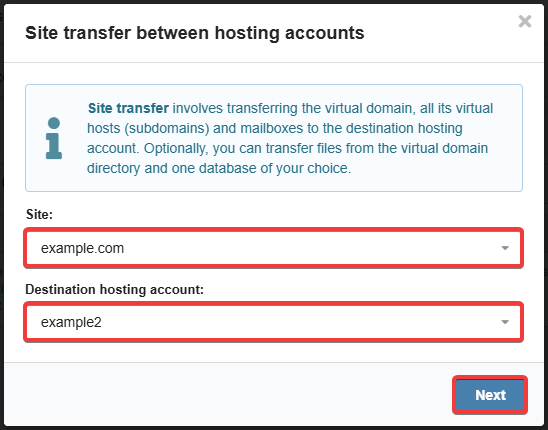
- Select the site to transfer, the destination hosting account and click "Next":
- Select the components to transfer (for a full transfer, select all) and click "Transfer":
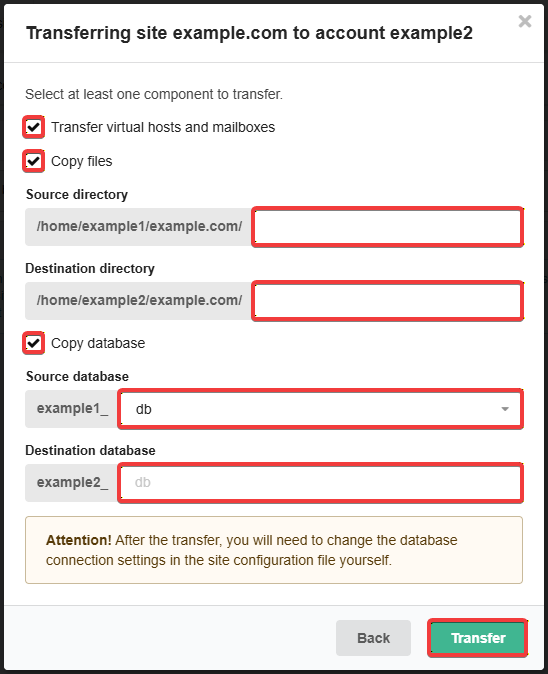
- "Copy files" — enable to copy the contents of the selected site's directory or any of its subdirectories:
- "Source directory" — path to the directory in the source hosting account from where you want to copy the data. To copy the entire contents of the directory, leave the field blank.
- "Destination directory" — path to the directory in the destination hosting account where you want to copy the contents of the source directory. You should specify an empty or nonexistent directory (it will be automatically created when copying). To preserve the original file structure, specify the same as specified in the source directory field (if it was empty, also leave it empty).
- "Copy database" — enable to copy the contents of the selected database:
- "Source database" — name of the database in the source hosting account whose contents you want to copy. The name of the database that the site uses can be found in the configuration file of this site in the database connection settings.
- "Destination database" — name of the database in the destination hosting account to which you want to copy the contents of the source database. You should specify the name of a database that does not exist yet (it will be automatically created when copying).
- Wait for the transfer to complete. The current status is displayed in the "Site transfer" section: in the source hosting account — in the "Outgoing requests" tab, in the destination hosting account — in the "Incoming requests" tab.
- Important! Make the necessary changes on the transferred site:
- Change the database connection settings in the site configuration file (see WordPress, Joomla!, OpenCart and ocStore, MODX, Drupal, PrestaShop, October, Magento, ImageCMS, Symfony, Laravel, Yii, Yii 2, CodeIgniter).
- Correct the absolute paths if they are used on the site (see WordPress, Joomla!, OpenCart). The path to the site directory should look like
/home/example/example.com/www, whereexampleis the name of the hosting account,example.com/wwwis the path to the site root directory.
- Check the site operation.
(7)
Comentarii
1. Как понять что сайт работает именно на новом хостинге?
2. Файлы и БД на старом остаются без имзенений? или происхоидт перенос, а не копирование?
2. Происходит копирование, не перенос. Старая БД остаётся в том виде, в котором и была до переноса.