Gestionarea modulelor cookie care sunt utilizate pentru publicitate, cum ar fi personalizarea anunțurilor, remarketing și analiza performanței anunțurilor.
2.5.2.3.1. Configure FTP and SFTP connection in PhpStorm
FTP
If the connection is successful but files are not being transferred and the FTP logs contain errors such as "Data connection closed", try reducing the number of simultaneous connections (option "Concurrent connection limit" or "Number of connections").
To connect to hosting via FTP, configure PhpStorm as follows: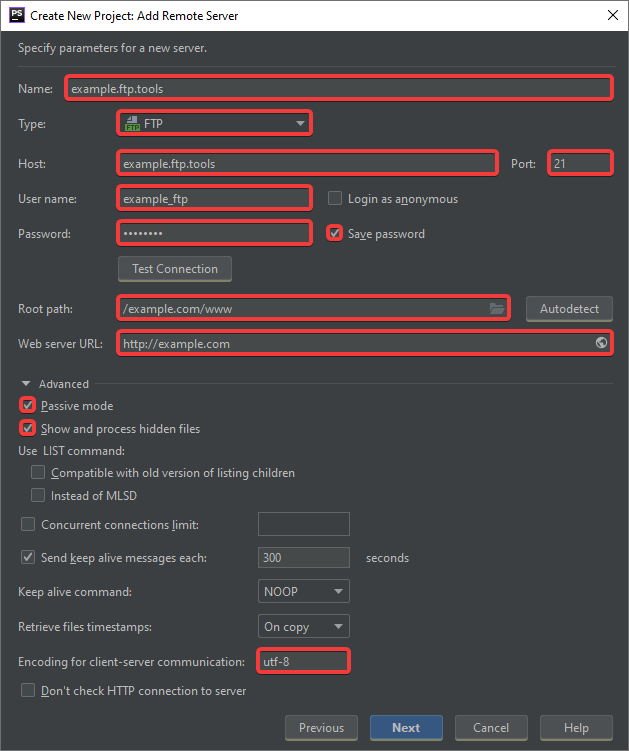
- "Name" — arbitrary name of the remote server connection configuration to be created.
- "Type" — "FTP".
- "Host" — FTP host.
- "Port" —
21. - "User name" — FTP login.
- "Password" — FTP password.
- "Save password" — enable to remember the password so that you do not have to enter it each time you connect.
- "Root path" — path to the required directory on the server relative to FTP access directory (can be selected by clicking on the folder icon).
- "Web server URL" — site URL or its service address (can be omitted if you enable "Don't check HTTP connection to server" below).
- Click "Advanced" and specify additional settings:
- "Passive mode" — mandatory enable.
- "Show and process hidden files" — enable if you want to see all files in a directory, including hidden files.
- "Encoding for client-server communication" —
utf-8.
You can test the connection using the "Test Connection" button.
SFTP
To connect to hosting via SFTP, configure PhpStorm as follows: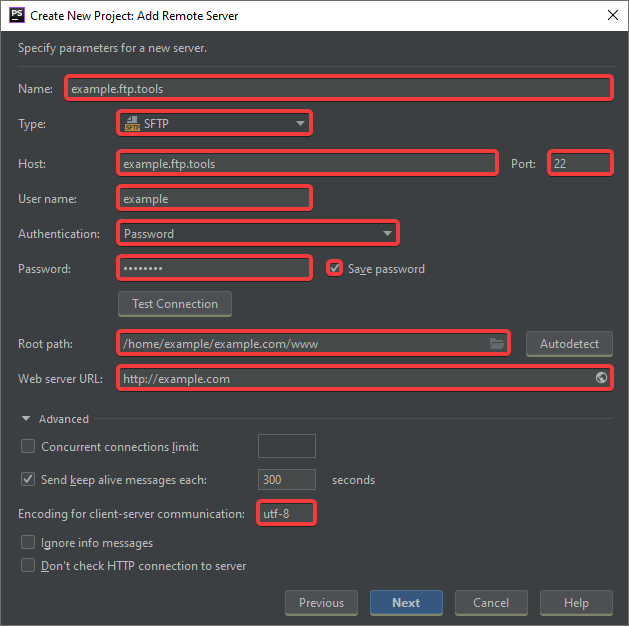
- "Name" — arbitrary name of the remote server connection configuration to be created.
- "Type" — "SFTP".
- "Host" — SSH host.
- "Port" —
22. - "User name" — SSH login.
- "Authentication" — "Password".
- "Password" — SSH password.
- "Save password" — enable to remember the password so that you do not have to enter it each time you connect.
- "Root path" — path to the required directory on the server relative to the root of the file system (can be found out in site settings or selected by clicking on the folder icon).
- "Web server URL" — site URL or its service address (can be omitted if you enable "Don't check HTTP connection to server" below).
- Click "Advanced" and specify additional settings:
- "Encoding for client-server communication" —
utf-8.
You can test the connection using the "Test Connection" button.